How I built an on-device plate OCR scanner for iPhone with Apple Vision
Nikos Katsikanis - April 18, 2026
I wanted live number-plate text recognition in an iPhone app without sending frames to a server or leaning on a third-party SDK. Apple’s text recognition was already decent. The hard part was making live reads stable enough to trust.
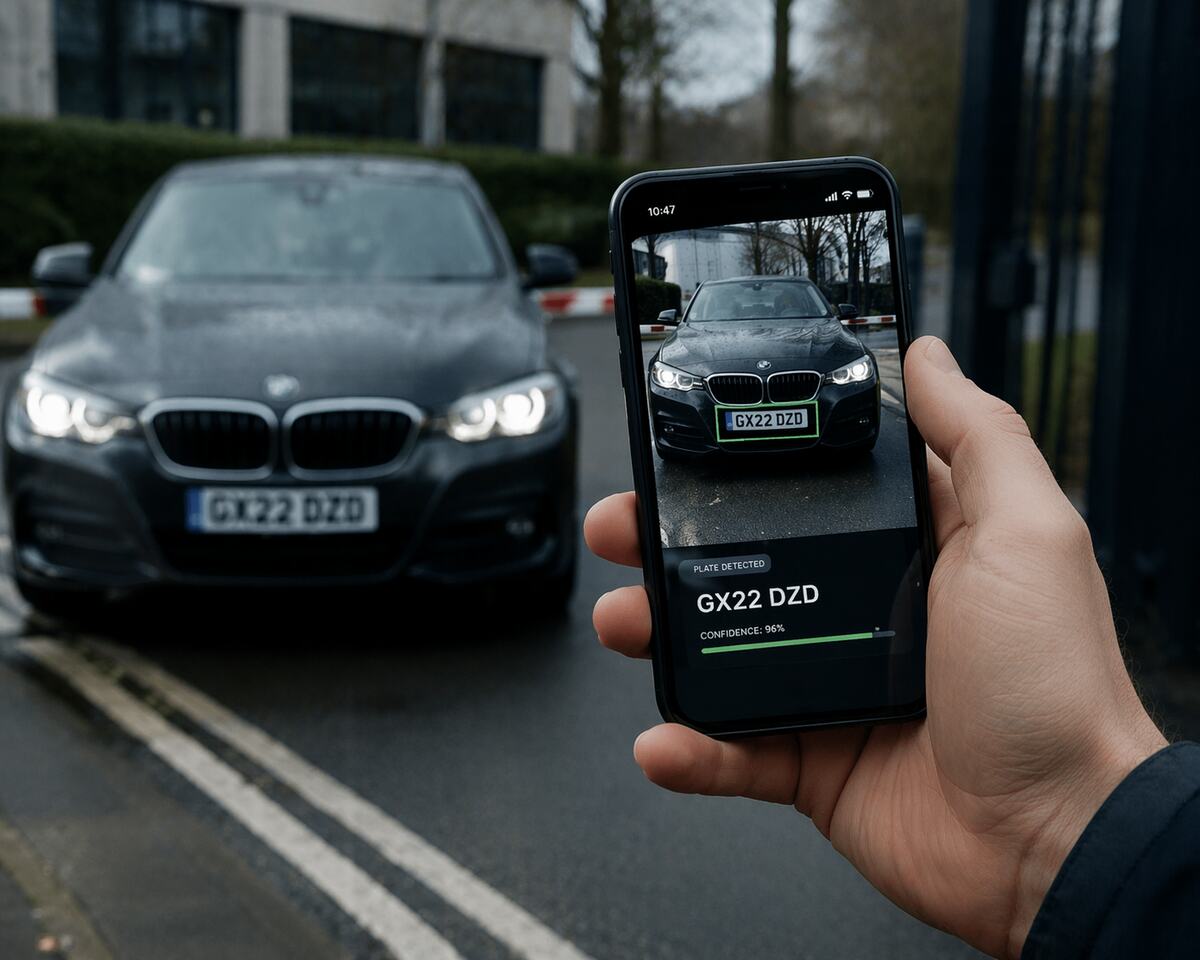
What I actually wanted
I wanted the whole pipeline to run locally, in real time, inside an iOS Acronym iPhone Operating System. Apple’s mobile operating system for the iPhone, with native APIs for camera capture, graphics, and on-device machine vision. app using Apple’s own frameworks. That meant camera frames from AVFoundation Acronym Audio Video Foundation. Apple’s framework for camera capture, media pipelines, and working with live video on iPhone and iPad. , text recognition from Vision, image work from Core Image, and the rest in Swift.
Getting OCR Acronym Optical character recognition. The process of detecting text in an image and turning it into machine-readable characters. out of one frame was easy enough. Making the scanner behave well in a live camera feed was the real job.
Live plate scanning has real-world noise:
- motion blur
- changing light
- reflections
- poor focus
- background text
- partial reads
- different guesses on different frames
So the interesting problem was not how to run OCR. It was how to stop a good OCR engine from wobbling in all the normal ways a live camera feed wobbles.
The stack stayed simple
AVFoundationfor the camera feed- Vision for text recognition
- Core Image for orientation and cropping
- Swift for matching, voting, smoothing, and state
No server calls. No external SDK. The core pieces were VNRecognizeTextRequest on the Vision side and captureDevicePointConverted(fromLayerPoint:) on the camera side.
final class ScannerStore: NSObject, ObservableObject {
    let session = AVCaptureSession()

    private let sessionQueue = DispatchQueue(label: "scanner.session")
    private let ocrQueue = DispatchQueue(label: "scanner.ocr")

    private var isProcessingFrame = false
    private var lastProcessedAt: TimeInterval = 0
}
I kept the scanner inside one long-lived store object so camera setup, OCR requests, and published detection state all stayed in one place. Two queues mattered: one for camera work and one for OCR. If OCR blocks camera work, the scanner feels bad immediately.
Technique #1: I did not OCR every frame
A common mistake is trying to process every frame. That burns CPU, heats the phone, drains battery, and leaves the UI reacting to stale work.
guard shouldProcessFrame(now: now) else { return }I gated frame processing in two ways:
- skip frames while an OCR request is still running
- enforce a minimum interval between scans
It was much better to process fewer recent frames than a backlog of old ones.
Technique #2: ROI Acronym Region of interest. The part of an image or frame that a vision system should prioritise instead of scanning everything. was the biggest single gain
The biggest improvement did not come from OCR settings. It came from telling Vision where to look.
private let defaultVisionRegion =
CGRect(x: 0.05, y: 0.35, width: 0.90, height: 0.30)

request.regionOfInterest = roi
Instead of scanning the whole frame, I constrained recognition to a centre band where users naturally place the plate. That gave me less irrelevant text, faster OCR, fewer false positives, and much more stable output.
Without ROI, Vision will happily read signs, bumper stickers, dealership branding, reflections, or whatever else happens to be in frame. With ROI, it stops wandering.
Apple documents regionOfInterest in Vision’s normalised image space, which is why it helps to be explicit about coordinate conversion instead of hand-waving it.
UIKit overlays and Vision do not share the same coordinates
If the guide box on screen uses top-left coordinates and Vision uses bottom-left coordinates, the Y axis has to be flipped. If OCR looks offset from the visible guide box, this is one of the first places I check.
func updateOverlayRegion(uiRect: CGRect, in viewSize: CGSize) {
    let nx = uiRect.origin.x / viewSize.width
    let nyTop = uiRect.origin.y / viewSize.height
    let nw = uiRect.size.width / viewSize.width
    let nh = uiRect.size.height / viewSize.height

    let visionY = 1.0 - nyTop - nh

    let roi = CGRect(x: nx, y: visionY, width: nw, height: nh)
}
That part follows Vision’s documented coordinate system for image requests and bounding boxes, so I treat it as plumbing that has to be right before I tune anything else.
Technique #3: focus and exposure should follow the same target
If the app already knows where the plate should be, the camera should prioritise that area too.
The one caveat is coordinate space. The camera device does not use Vision’s ROI coordinates directly, so the visible guide box or ROI centre needs to be converted before being applied.
let pointOfInterest = previewLayer.captureDevicePointConverted(
    fromLayerPoint: overlayCenter
)

device.focusPointOfInterest = pointOfInterest
device.exposurePointOfInterest = pointOfInterest
device.focusMode = .continuousAutoFocus
device.exposureMode = .continuousAutoExposure
This made frames noticeably sharper. A lot of OCR problems are really camera problems first. Apple’s preview-layer conversion method is the bit that keeps the target point honest.
Technique #4: I tuned Vision for plate text, not words
let request = VNRecognizeTextRequest()

request.recognitionLevel = .accurate
request.usesLanguageCorrection = false
request.recognitionLanguages = ["en-GB"]
request.regionOfInterest = roi
request.minimumTextHeight = 0.09
These settings mattered for practical reasons:
.accuratebecause a wrong read costs more than a slightly slower passusesLanguageCorrection = falsebecause number plates are identifiers, not normal wordsrecognitionLanguagesbecause a likely locale can make the recogniser behave more predictably, even though plate reading is not natural languageminimumTextHeightbecause tiny background text should be ignored
Apple documents minimumTextHeight relative to image height. In practice I tuned it empirically based on how large the plate usually appeared in my chosen framing, instead of pretending one threshold fit every case.
if roi.height >= 0.25 {
    request.minimumTextHeight = 0.10
} else if roi.height >= 0.18 {
    request.minimumTextHeight = 0.09
} else {
    request.minimumTextHeight = 0.07
}
Technique #5: I kept only the largest plausible text block
Even inside the ROI, Vision often returns multiple text observations. In my guided scanner flow, the plate was usually the largest meaningful text block, so I kept the biggest plausible bounding box and ignored the rest.
let largest = observations.max(by: {
    ($0.boundingBox.width * $0.boundingBox.height) <
    ($1.boundingBox.width * $1.boundingBox.height)
})
That stripped out a lot of accidental matches from badges, small labels, nearby signs, and partial text. It is a guided-scanner heuristic, not a universal truth.
Technique #6: I asked for multiple candidates and normalised common mistakes
A naive implementation trusts only the top candidate.
observation.topCandidates(3)That mattered because OCR often returns close alternatives:
AB12CDEABI2CDEAB12ODE
One frame might rank the wrong one first, but the right answer is often still in the candidate list. Before scoring them, I normalised obvious OCR confusions like O and 0, I and 1, or S and 5. That is where domain knowledge beats generic OCR.
Technique #7: confidence voting was better than trusting one frame
Instead of believing the first candidate from one frame, I summed confidence by normalised plate value.
totals[plate, default: 0] += confidenceIf the same normalised plate kept showing up across candidates and frames, it pulled ahead naturally. That was far more stable than trusting one frame’s top guess.
Technique #8: temporal smoothing made it feel trustworthy
Even strong OCR lies for one frame. Focus wobbles, glare hits, or a car moves just enough to produce nonsense. So I stopped asking whether one frame was correct and started asking whether the same answer had stayed strongest for long enough.
private var recentPlates: [(plate: String,
                            confidence: Double,
                            time: Date)] = []
I kept a rolling window and only accepted a plate once it had enough accumulated weight over a short time span. This was one of the biggest gains in the whole scanner.
Technique #9: duplicate cooldowns stopped spammy detections
Once a plate was accepted, I usually did not want the same result firing over and over.
if recentlySeen(plate) { return }That mattered for repeated pass-through scenarios like gates, parking workflows, or evidence capture.
The full matching pipeline
- frame gating
- ROI constraint
- focus and exposure bias
- Vision OCR
- minimum text size filter
- largest text block only
- multi-candidate extraction
- normalisation
- confidence voting
- temporal smoothing
- duplicate cooldown
None of those changes is dramatic on its own. Together they turned the scanner from a demo into something I would actually trust in a live feed.
What moved the needle most
- ROI constraints
- temporal smoothing
- multi-candidate voting plus normalisation
- largest text filtering
- focus and exposure targeting
I cropped saved evidence to the same region the scanner used
If I needed to save or upload an evidence image, I cropped it to the same ROI used during recognition.
private func cropRectForVisionRegion(_ region: CGRect,
                                     in extent: CGRect) -> CGRect {
    let rect = CGRect(
        x: extent.minX + (region.origin.x * extent.width),
        y: extent.minY + (region.origin.y * extent.height),
        width: region.width * extent.width,
        height: region.height * extent.height
    )

    return rect.insetBy(dx: -24, dy: -16).intersection(extent)
}
That kept saved images aligned with what the scanner had actually analysed instead of saving a misleading full frame.
If I built v2
- a fallback
.fastOCR pass when accurate mode finds nothing - country-specific plate formats
- adaptive thresholds based on lighting
- local detection history
- bounding-box tracking between frames
- motion-assisted frame selection
Closing
Apple gives you the OCR engine. The product quality comes from the heuristics around it.
For me, that meant constraining the search space, improving the camera input, comparing multiple candidates, normalising obvious mistakes, and requiring consistency over time. That is what turned a working prototype into a plate scanner that felt stable enough to use live on an iPhone.